Modern gadgets, from smartphones to smart home devices, are integral to daily life. When they malfunction, the immediate impulse is often to replace or seek costly professional repair. However, a significant percentage of common gadget problems can be resolved through systematic, user-level troubleshooting. Understanding basic diagnostic principles not only saves money and time but also extends the operational lifespan of your devices, reducing electronic waste. This guide outlines a structured approach to identifying and addressing typical issues, empowering you to restore functionality without immediate external intervention.
Initial Diagnostic Steps
Before assuming a critical failure, always begin with the simplest, most fundamental checks. These steps often resolve issues that appear complex at first glance.
Power Supply Verification
A surprising number of "dead" devices are simply unpowered. Verify the power source first. For battery-powered devices, ensure they are adequately charged. Connect to a known-good charger and wall outlet. For AC-powered devices, check that the power cable is securely plugged into both the device and the outlet. Test the outlet with another appliance to confirm it's live. If using a power strip, ensure it's switched on and functional. Inspect cables for visible damage like fraying or bends, which can interrupt current flow.
Basic Reboot Procedures
The "turn it off and on again" cliché persists because it frequently works. A simple reboot can clear temporary software glitches, memory leaks, and unresponsive processes. For most devices, this involves holding the power button until a power-off option appears, then restarting. For completely frozen devices, a force restart (often a combination of power and volume buttons, or a pinhole reset for some routers) might be necessary. This reinitializes the operating system and can resolve many transient issues without data loss.
Addressing Software Glitches
Software issues, ranging from unresponsive applications to system instability, are common and often resolvable without hardware intervention.
Application-Specific Issues
If a single application is misbehaving (crashing, freezing, not loading), the problem likely lies with the app itself. First, attempt to force-quit the application and reopen it. If the issue persists, check for available updates for that specific app in your device's app store. Outdated versions can develop compatibility problems. As a last resort, uninstalling and reinstalling the problematic application can clear corrupted data or settings, though this may require re-entering login credentials.
Operating System Updates and Resets
Device manufacturers regularly release operating system (OS) updates that include bug fixes, performance improvements, and security patches. Ensure your device's OS is up to date. Navigate to the system settings and look for a "Software Update" or "About Device" section. If the device's overall performance is consistently poor or erratic across multiple applications, a factory reset might be necessary. This will erase all user data and settings, restoring the device to its original state, so a full data backup is crucial before proceeding.
Connectivity Challenges
Problems connecting to networks or other devices can stem from various points in the communication chain.
Wi-Fi and Bluetooth Diagnostics
For Wi-Fi issues, first toggle Wi-Fi off and on again on your device. If that fails, restart your router and modem. Ensure your device is within range and that the Wi-Fi password is correct. For Bluetooth, ensure both devices have Bluetooth enabled and are in pairing mode. "Forget" or "unpair" the device from your gadget's Bluetooth settings and attempt to re-pair it. Interference from other wireless devices or physical obstructions can also degrade signal quality.
Cable and Port Inspection
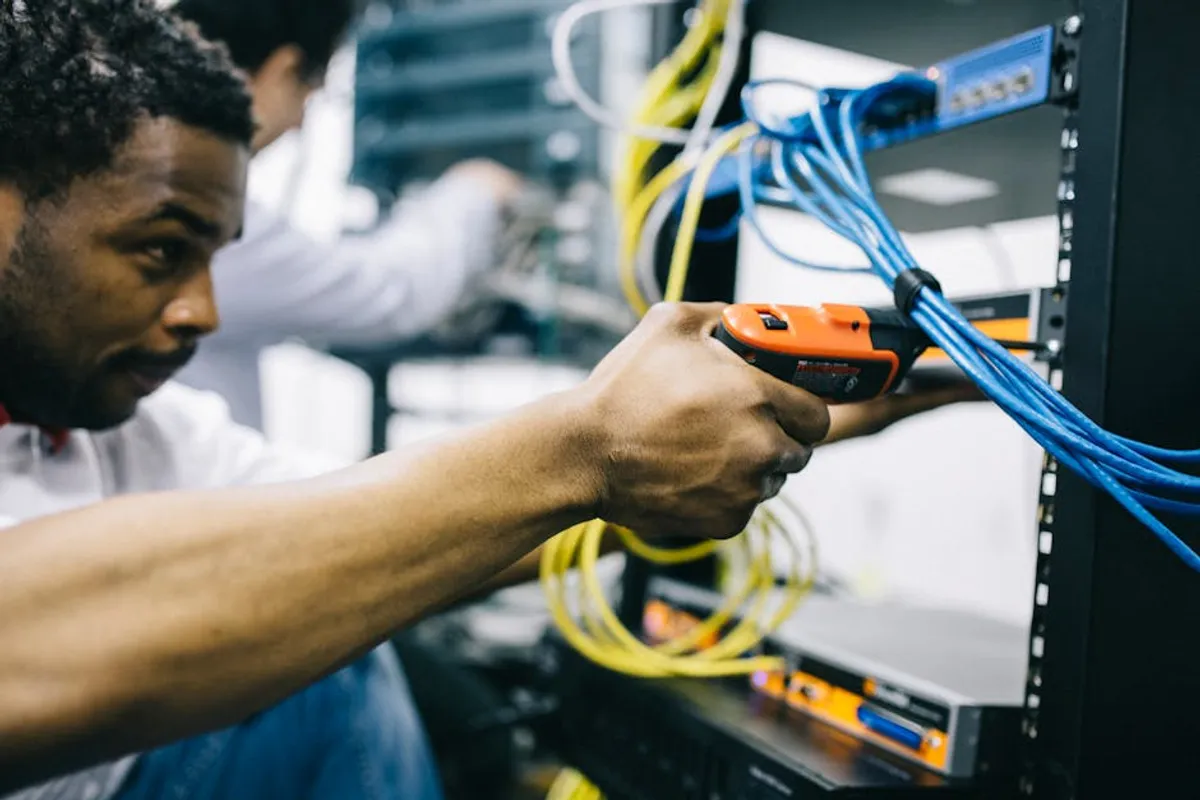
Physical connections are often overlooked. Inspect USB, HDMI, Ethernet, and audio ports for dust, debris, or bent pins. Use a flashlight and a non-conductive tool (like a wooden toothpick or compressed air) to carefully clear any obstructions. Test cables by swapping them with known-good alternatives. A faulty cable can prevent data transfer, charging, or display output, mimicking a device problem.
Pro Tip: When troubleshooting, isolate variables. If a device isn't charging, try a different cable, then a different adapter, then a different outlet. This systematic elimination helps pinpoint the exact point of failure, preventing unnecessary component replacement.
Hardware Malfunctions
When software and connectivity checks yield no solution, the issue might be hardware-related. Some hardware problems are repairable, while others indicate a need for replacement.
Screen and Display Anomalies
If your screen is flickering, showing dead pixels, or is completely black but the device is otherwise responsive (e.g., making sounds), it points to a display issue. For minor glitches, a force restart can sometimes help. Check for physical damage to the screen itself. If the damage is extensive, an internal connection may be loose, or the display panel itself may be broken, often requiring professional repair or screen replacement.
Battery Performance Degradation
Batteries naturally degrade over time, leading to reduced capacity, unexpected shutdowns, or slow charging. Monitor battery health settings if available on your device (e.g., iOS Battery Health). If a battery is swelling, it's a significant safety hazard and requires immediate professional attention and replacement. For older devices, a battery replacement can often extend the useful life of the gadget significantly.
Audio and Input Issues
For audio problems, check volume settings, ensure headphones aren't plugged in (unless intended), and test with different audio sources. For input issues (e.g., unresponsive keyboard keys, erratic mouse cursor, touchscreen dead zones), clean the affected area. For physical buttons, check for stickiness or debris. If specific areas of a touchscreen are unresponsive, it may indicate a localized hardware fault in the digitizer.
When to Seek Professional Help
Not all problems are user-serviceable. Knowing when to escalate to a professional saves time and prevents further damage.
Identifying Irreparable Damage
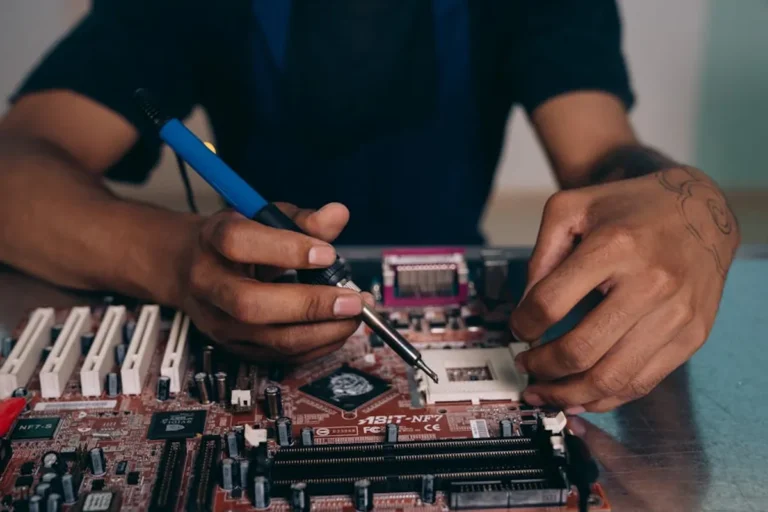
Severe physical damage (e.g., shattered screens, water immersion, bent chassis), persistent internal component failure after basic troubleshooting, or issues requiring specialized tools and expertise (e.g., micro-soldering, complex board repair) typically fall outside the scope of DIY repair. Attempting repairs beyond your skill level can void warranties or cause irreversible damage.
Evaluating Repair Costs vs. Replacement
Before committing to a professional repair, obtain a quote. Compare the repair cost against the price of a new or refurbished replacement device. Consider the age of your gadget and its remaining useful life. If repair costs exceed 50-70% of a new device's value, or if the gadget is several generations old, replacement often represents better long-term value, offering improved performance and updated features.
Proactive Device Maintenance
Regular, simple practices can significantly reduce the incidence of gadget problems.
- Keep Software Updated: Install OS and application updates promptly to benefit from bug fixes and security improvements.
- Manage Storage: Avoid filling your device's storage to capacity, as this can slow performance and cause instability. Regularly clear temporary files and unused apps.
- Protect Physically: Use cases, screen protectors, and store devices safely to prevent drops, impacts, and liquid exposure.
- Optimize Battery Use: Avoid extreme temperatures, don't leave devices fully charged or completely drained for extended periods, and use manufacturer-approved chargers.
- Clean Regularly: Gently clean ports and screens to prevent dust and debris buildup, which can impede functionality.
Frequently Asked Questions
How often should I update my gadget's software?
It is generally recommended to install software updates as soon as they become available, especially those marked as critical security updates or bug fixes, to maintain optimal performance and protection.
Is it safe to open my gadget for repairs?
Opening most modern gadgets is not recommended for the average user, as it can void warranties, damage delicate internal components, or expose you to electrical hazards. Attempt only if you have specific training and appropriate tools.
What's the first thing to check when a gadget stops working?
Always start by verifying the power source and performing a basic restart. Many issues are resolved by simply ensuring the device is charged and its operating system is refreshed.
How can I prevent common gadget problems?
Regular software updates, physical protection (cases, screen protectors), maintaining adequate storage space, and keeping devices clean are key preventative measures that can significantly reduce issues.