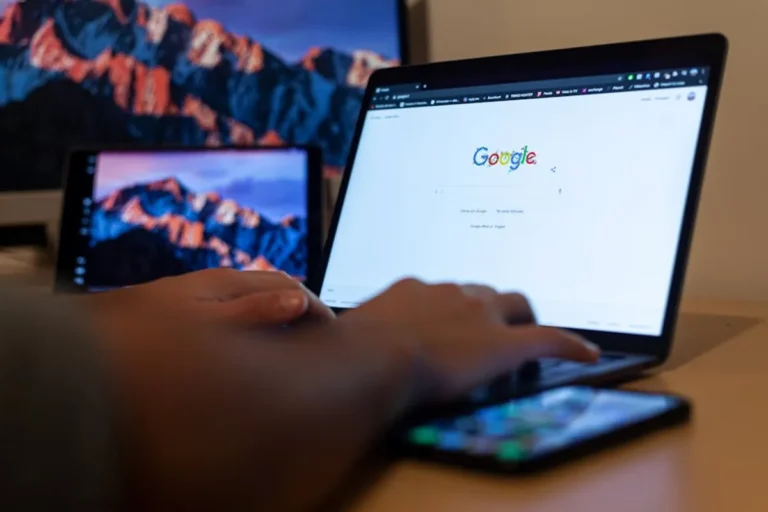

Choosing between a Chromebook and a tablet involves more than just comparing specifications; it requires a clear understanding of your primary computing needs and how each device architecture supports those demands. Both offer portable computing, but they diverge significantly in their core design philosophy, operating system capabilities, and intended use cases. A Chromebook is fundamentally a web-centric laptop, optimized for cloud-based tasks and a traditional desktop-like experience, while a tablet prioritizes touch-first interaction, media consumption, and often, app-driven functionality. Your decision hinges on whether your daily tasks lean towards document creation, extensive multitasking, and peripheral connectivity, or towards media consumption, artistic creation, and ultra-portability with a focus on touch interaction. Ultimately, understanding the core differences when comparing these two devices will guide you to the right purchase.
Core Operating System Philosophies
The operating system defines the user experience and functional limits of each device. Chromebooks run Chrome OS, a lightweight, Linux-based operating system developed by Google. It is built around the Chrome browser and Google's suite of web applications, prioritizing speed, security, and cloud integration. Chrome OS boots quickly, updates automatically, and offers a familiar desktop interface with a file system, taskbar, and window management. While it supports Android apps and some Linux applications, its strength remains in web-based workflows.
Tablets, conversely, primarily run either Apple's iPadOS or Google's Android. iPadOS is a sophisticated mobile operating system designed for Apple's iPad line, offering robust multitasking, advanced touch gestures, and a vast ecosystem of optimized applications, particularly for creative work. Android tablets utilize a version of Android adapted for larger screens, providing flexibility and a wide range of hardware options from various manufacturers. Both tablet operating systems are inherently touch-first, with interfaces optimized for finger input, though they increasingly support keyboard and stylus accessories to bridge productivity gaps.
Hardware and Form Factor
The physical design of Chromebooks and tablets reflects their underlying OS and intended use.
Keyboards and Input
Chromebooks are almost universally designed as clamshell laptops, meaning a physical keyboard and trackpad are integrated. This provides a consistent, tactile typing experience essential for extended document creation, coding, or email correspondence. While some convertible Chromebooks allow folding into tablet mode, the keyboard remains a primary input method.
Tablets, by default, are slate devices primarily controlled via a touchscreen. Physical keyboards are typically optional accessories, often sold separately, which can add significant cost and bulk. While on-screen keyboards are suitable for short inputs, they are less efficient for sustained typing. Stylus support is also prominent on many tablets, enabling precise input for drawing, note-taking, and detailed editing.
Ports and Connectivity
Chromebooks generally offer a more comprehensive selection of physical ports, including USB-A, USB-C, and sometimes HDMI or microSD card slots. This facilitates direct connection to external monitors, hard drives, and other peripherals without adapters, supporting a more traditional desktop workflow. Wi-Fi is standard, and cellular options are available on some models.
Tablets often feature fewer physical ports, typically one or two USB-C ports (or Lightning on older iPads). This minimalist design prioritizes sleekness and portability, but often necessitates dongles or wireless solutions for connecting external devices. Wireless connectivity, including Wi-Fi and often cellular, is central to their design.
Display Quality and Size
Both device types offer a wide range of display qualities and sizes. High-resolution screens are common across premium models in both categories, crucial for content consumption and detailed work. Chromebooks typically range from 11 to 15 inches, mirroring laptop dimensions. Tablets can range from compact 7-inch models to large 13-inch or 14-inch professional slates, often with higher pixel densities and advanced display technologies like OLED for superior color and contrast.
Productivity and Workflow
This is where the distinction becomes most critical for many users.
Document Creation and Editing
Chromebooks excel at text-based productivity tasks due to their integrated keyboards and desktop-like environment. Google Docs, Sheets, and Slides are seamlessly integrated, and web versions of Microsoft Office 365 or other productivity suites function well within the Chrome browser. The file management system is intuitive for organizing documents, and external storage integration is straightforward.
Tablets, while capable of document creation, often require adapting to a touch-first workflow. While apps like Microsoft Office, Google Workspace, and Apple's iWork are available and highly functional, sustained typing often benefits from an external keyboard. Multitasking on tablets has improved significantly with features like split-screen and slide-over, but managing multiple windows and complex file structures can still feel less fluid than on a desktop OS.
Multitasking Capabilities
Chrome OS provides a traditional windowed environment, allowing users to open and arrange multiple applications and browser tabs side-by-side, similar to Windows or macOS. This facilitates efficient switching between tasks like research, writing, and communication.
iPadOS and Android have advanced their multitasking features, enabling side-by-side apps, floating windows, and app switching. However, the paradigm is still optimized for a more focused, app-centric experience rather than the free-form window management of a desktop OS. For heavy research, data entry, or complex project management requiring many open applications, a Chromebook often provides a more natural and less restrictive environment.
Pro Tip: Evaluate your typical "work session." If it involves opening 10+ browser tabs, managing multiple documents, and frequently switching between applications, a Chromebook’s desktop environment will likely offer a smoother, less interrupted workflow than a tablet, even with an attached keyboard.
Content Consumption and Entertainment
Tablets generally hold an edge here due to their form factor and app ecosystems.
With their vibrant touchscreens, thin profiles, and often superior audio, tablets are ideal for media consumption. Streaming video, reading ebooks, browsing social media, and playing touch-optimized games are intuitive and immersive. The vast app stores (App Store for iPadOS, Google Play Store for Android) offer a wider selection of entertainment-focused applications, many optimized for the tablet experience.
Chromebooks can certainly handle content consumption, with access to streaming services via the browser or Android apps. However, their clamshell design makes them less comfortable for handheld reading or casual browsing on a couch. Gaming is largely limited to Android games or cloud streaming services, as Chrome OS is not designed for high-end PC gaming.
Portability and Battery Life
Both device categories are designed for portability, but with nuances.
Tablets, especially smaller models, are typically lighter and thinner than Chromebooks. Their slate design makes them easy to slip into small bags or carry by hand, offering maximum portability. Battery life is often excellent, with many models easily lasting a full day or more on a single charge.
Chromebooks, while generally lighter than traditional laptops, still carry the weight and bulk of a keyboard and trackpad. They are highly portable for travel and commuting but less so for casual, handheld use. Battery life is also strong, often rivalling or exceeding that of tablets, especially on models with power-efficient processors.
App Ecosystem and Software
- Chromebooks: Primarily web apps, with growing support for Android apps (via Google Play Store) and Linux applications. This offers a wide range of productivity tools and entertainment options, but some specialized desktop software is unavailable.
- Tablets (iPadOS): A highly curated app store with thousands of applications specifically optimized for the tablet interface, including powerful creative and professional tools.
- Tablets (Android): Access to the vast Google Play Store, offering a broad selection of apps, though optimization for larger tablet screens can vary more widely than on iPadOS.
Pricing and Value Proposition
Chromebooks are often more budget-friendly, with many models available under $500, making them an accessible option for students or those with basic computing needs. Premium Chromebooks can rival mid-range laptops in price.
Tablets range from very affordable Android models (under $200) to high-end iPads and Android tablets that can exceed $1000, especially when factoring in accessories like keyboards and styluses. The value proposition depends heavily on the specific model and its intended use, with higher-end tablets often targeting creative professionals.
Choosing the Right Device for Your Needs
The decision between a Chromebook and a tablet boils down to your primary use case and workflow preferences.
Choose a Chromebook if you:
- Need a physical keyboard and trackpad for extensive typing and document creation.
- Primarily work within a web browser and cloud-based applications.
- Require a traditional desktop-like multitasking environment.
- Value built-in security and quick boot times.
- Are looking for a cost-effective laptop alternative for productivity.
Choose a Tablet if you:
- Prioritize touch-first interaction and ultra-portability.
- Mainly consume media (streaming, reading, browsing).
- Engage in creative tasks like drawing, photo editing, or graphic design with a stylus.
- Prefer an app-centric experience with a wide range of entertainment options.
- Need a device that can easily transition between casual use and light productivity with accessories.
Consider your daily tasks: do they involve heavy typing and file management, or are they more about content consumption, quick interactions, and creative expression? Your answer will guide you to the device that best supports your digital life.
Frequently Asked Questions
Can a Chromebook replace a laptop?
For most users whose primary tasks involve web browsing, email, word processing, spreadsheets, and video conferencing, a Chromebook can effectively replace a traditional laptop. It excels in cloud-centric workflows but may lack the power or software compatibility for specialized tasks like advanced video editing or high-end gaming.
Are tablets good for work?
Yes, many modern tablets, especially those with robust operating systems like iPadOS and powerful accessories like external keyboards and styluses, are excellent for various work tasks including note-taking, document review, presentations, and creative design. Their suitability for work depends on the specific job requirements and the user's workflow preferences.
What is the main advantage of a Chromebook over a tablet?
The primary advantage of a Chromebook is its integrated physical keyboard and trackpad, combined with a desktop-like operating system (Chrome OS) that facilitates traditional multitasking and web-based productivity, making it superior for sustained typing and complex workflows.
What is the main advantage of a tablet over a Chromebook?
The main advantage of a tablet is its touch-first interface and highly portable slate form factor, which makes it ideal for media consumption, casual browsing, and creative tasks like drawing or note-taking using a stylus, offering a more intuitive and immersive experience in these areas.