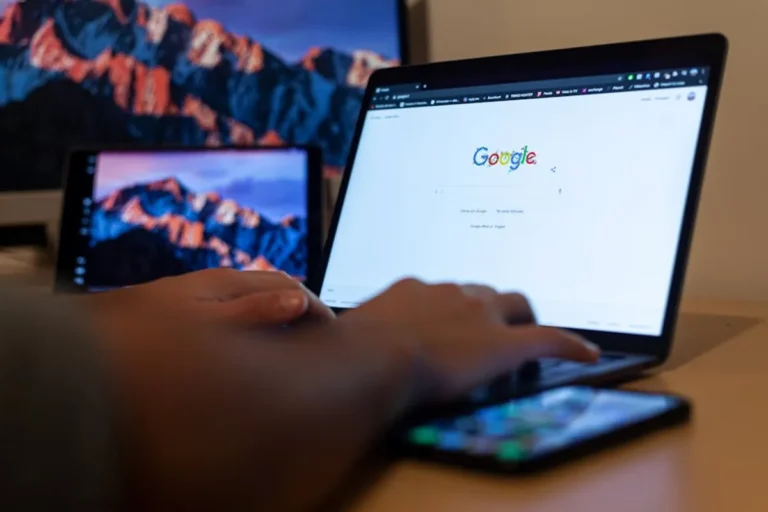
Deciding between a Chromebook and a tablet involves more than just comparing specifications; it requires a precise understanding of your primary workflows, software dependencies, and mobility requirements. Neither device is universally superior, but each excels in distinct environments. This guide breaks down the core differentiators to help you determine which form factor best supports your daily tasks and long-term objectives.
Operating Systems and Core Ecosystems
The fundamental distinction between a Chromebook and a tablet lies in their operating systems and the ecosystems they support. Chromebooks run Chrome OS, a Linux-based system designed around the Google Chrome web browser. This means they are inherently cloud-centric, relying heavily on web applications, Progressive Web Apps (PWAs), and Google's suite of services (Docs, Sheets, Drive). While most modern Chromebooks also support Android applications via the Google Play Store, their primary strength remains in web-based productivity.
Tablets, conversely, operate on mobile-first operating systems such as Apple's iPadOS, Google's Android, or, less commonly, Microsoft's Windows. iPadOS and Android tablets prioritize touch interaction and a vast ecosystem of native mobile applications, designed for consumption and specific creative tasks. Windows tablets, while less common in the consumer space, offer a full desktop operating system experience in a portable form factor, allowing compatibility with traditional desktop software.
Consider: Your existing digital ecosystem (Apple, Google, Microsoft) and the extent of your reliance on web applications versus dedicated mobile or desktop software.
Input Methods and Versatility
Input methods significantly influence a device's utility for different tasks. Chromebooks typically feature a built-in physical keyboard and trackpad, mimicking the traditional laptop experience. This design is optimized for typing, document creation, email management, and other text-heavy tasks, making them immediate contenders for productivity. Many Chromebooks also offer touchscreen functionality and stylus support, adding flexibility for drawing or annotation.
Tablets, by default, are touch-first devices. Their primary interaction is through a touchscreen, which is ideal for media consumption, browsing, casual gaming, and specific creative applications like digital art. While most tablets offer optional accessories such as external keyboards and styluses, these are often add-ons that increase cost and can sometimes feel less integrated than a native laptop setup. The slate form factor excels in portability and quick, intuitive interaction.
Best for:
- Chromebooks: Extensive typing, coding, spreadsheet work, multi-tab browsing, virtual meetings.
- Tablets: Reading e-books, watching videos, casual gaming, digital drawing, quick note-taking, presenting visual content.
Performance and Processing Power
The performance profile of Chromebooks and tablets varies widely, reflecting their intended use cases. Chromebooks are generally equipped with processors (often Intel Celeron, Pentium, or Core i3/i5, or MediaTek/Qualcomm ARM chips) optimized for web browsing, cloud-based applications, and light multitasking. Their efficiency stems from Chrome OS's lightweight nature, which demands fewer resources than a full desktop OS. They are designed for responsiveness within their web-centric paradigm.
Tablets span a broader performance spectrum. Entry-level Android tablets use basic ARM processors suitable for media consumption and simple apps. High-end tablets, particularly those running iPadOS (with Apple's A-series or M-series chips) or Windows (with Intel Core or Qualcomm Snapdragon chips), can rival or exceed the performance of many laptops. These devices are capable of demanding tasks like video editing, graphic design, and running complex professional software, often leveraging specialized hardware and optimized applications.
Pro Tip: Before committing, list the five most critical applications or tasks you perform daily. Research which device type natively supports these with optimal performance and user experience. If a specific professional application is paramount, verify its full compatibility and performance on your chosen device's operating system.
Portability and Battery Life
Both Chromebooks and tablets are designed for portability, but their form factors dictate different handling and usage scenarios. Tablets, being lighter and thinner slates, are inherently more portable for single-handed use, reading, or carrying in smaller bags. Their battery life is often optimized for passive consumption, allowing for extended video playback or web browsing sessions.
Chromebooks, with their clamshell design, offer a more stable platform for lap use and typing. While generally lightweight, they are typically thicker and heavier than most tablets due to the integrated keyboard and larger screens. Battery life on Chromebooks is competitive, often exceeding 8-10 hours of mixed use, but this can vary significantly with screen brightness and workload.
Key Differences:
- Tablets: Superior for ultra-portability, quick access, and media consumption on the go.
- Chromebooks: Better for sustained productivity in various settings, offering a stable typing platform.
Software and App Availability
The software landscape is a critical differentiator. Chromebooks primarily leverage web applications and the Google Play Store for Android apps. This provides access to a vast array of tools, but some professional-grade desktop software (e.g., Adobe Creative Suite, specialized engineering tools) may not have full-featured web or Android equivalents. For users deeply embedded in the Google ecosystem, this integration is seamless.
Tablets offer a rich native app experience. iPadOS and Android tablets boast millions of apps specifically optimized for their touch interfaces, covering everything from entertainment to productivity and creative pursuits. Windows tablets, running a full desktop OS, provide compatibility with virtually any Windows application, making them suitable for users who need specific legacy software or full desktop functionality in a portable format.
Cost Considerations
Generally, Chromebooks occupy a competitive price point, often starting in the $200-$400 range. This makes them an attractive option for students, casual users, or as secondary devices. Higher-end Chromebooks with premium features can reach $600-$800, but they rarely exceed traditional laptop pricing.
Tablets have a broader price range. Basic Android tablets can be found for under $150. Mid-range iPads and more capable Android tablets typically fall between $300-$700. High-end professional tablets, such as the iPad Pro or Microsoft Surface Pro, can easily exceed $1000, especially when factoring in essential accessories like keyboards and styluses, pushing their total cost into the premium laptop category.
Making Your Informed Choice
The decision hinges on prioritizing your primary use cases. If your work revolves around web browsers, cloud services, and light document creation, and you value a built-in keyboard for sustained typing, a Chromebook offers a cost-effective and efficient solution. Its security model and ease of management also appeal to educational institutions and some business environments.
If your needs lean towards media consumption, touch-first interaction, specific creative applications, or if you require the full power of a desktop operating system in a portable format (as with some Windows tablets), a tablet is likely the better fit. Consider the accessories you'll need to achieve full functionality, as these often add significantly to the overall investment.
Ultimately, neither device is a direct replacement for the other; they serve different niches. Evaluate your daily tasks, the software you depend on, and your budget to align with the device that maximizes your productivity and enjoyment.
Frequently Asked Questions
Can a Chromebook fully replace a traditional laptop?
For many users whose primary tasks involve web browsing, email, word processing, spreadsheets, and cloud-based collaboration, a Chromebook can effectively replace a traditional laptop. However, it may not be suitable for demanding tasks requiring specialized desktop software, extensive local storage, or high-end graphics processing.
Are tablets good for productivity and work?
Yes, modern tablets, especially high-end models like the iPad Pro or Microsoft Surface Pro, are increasingly capable productivity tools. With optional keyboard attachments, stylus support, and powerful mobile-optimized apps, they can handle many work-related tasks, including document creation, graphic design, and video editing. Their suitability depends heavily on the specific software requirements of your workflow.
Which device offers better battery life?
Both Chromebooks and tablets generally offer excellent battery life, often exceeding 8-10 hours of mixed use. Tablets designed for media consumption can sometimes offer longer video playback times, while Chromebooks are optimized for sustained web-based work. Actual battery performance varies significantly based on screen brightness, CPU load, and specific usage patterns for both device types.
Do Chromebooks and tablets support external monitors?
Most modern Chromebooks and many tablets support external monitors, allowing for an expanded workspace. Chromebooks typically offer more seamless multi-monitor support akin to a desktop experience. Tablets often require specific adapters or docks, and their external display capabilities can vary, sometimes mirroring the device's screen rather than extending it as a separate desktop.